SYSTEM COMPARE RESEARCH DESK
Before You Move CRM, Clean the Data First
Prepare for a CRM move with a practical checklist for record identifiers, field mapping, duplicate handling, test imports and reconciliation.
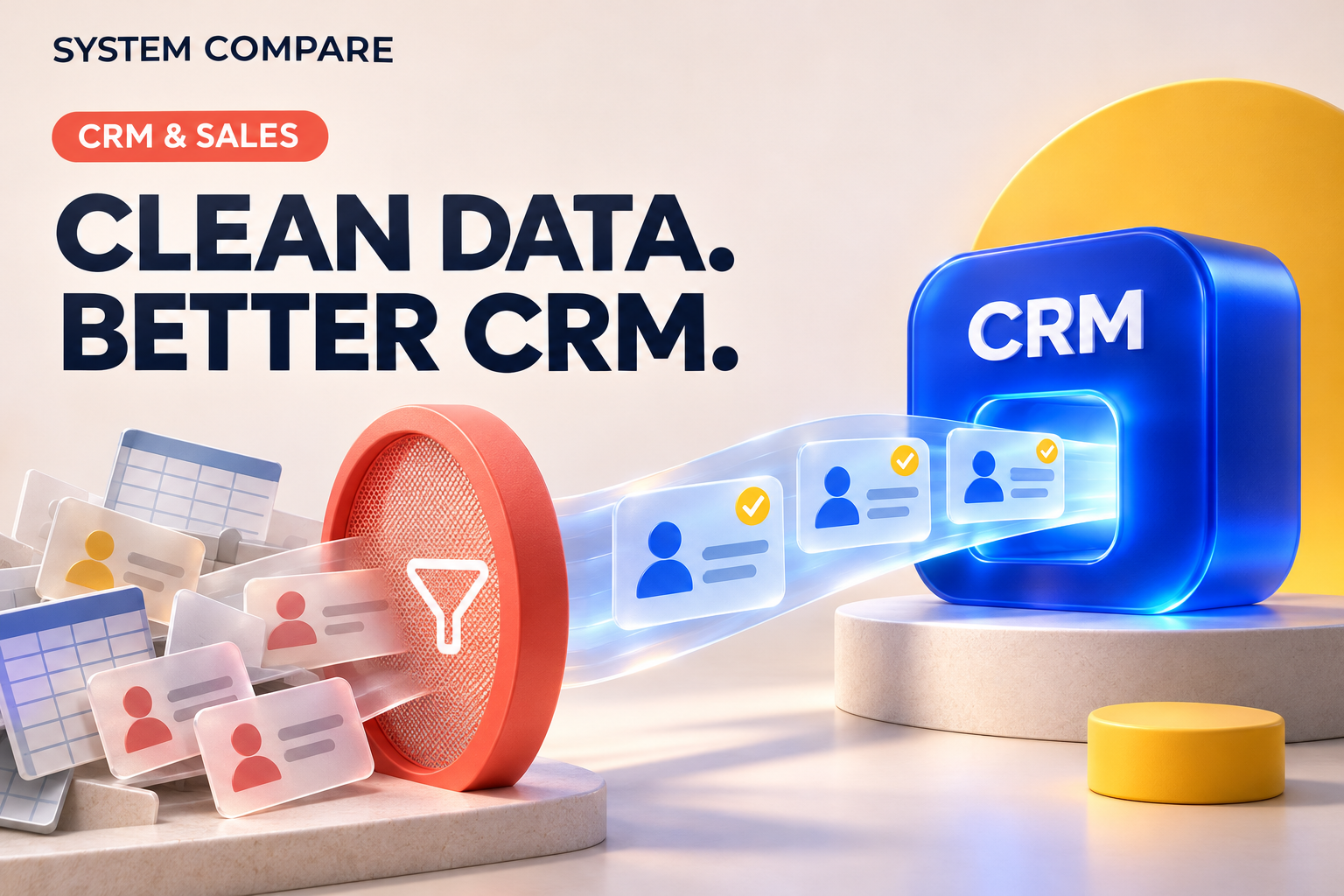
Start with the data
A customer relationship management system, or CRM, helps a business keep track of the people and companies it works with, the opportunities it is pursuing, and the activities needed to move those relationships forward. Contacts, companies, deals, notes and follow-up tasks need to make sense together.
Moving to a new CRM therefore involves more than copying a contact list. A record can arrive with the right name but the wrong owner, a missing company connection or an outdated deal stage. Before comparing more features or importing the full database, make a small, realistic rehearsal part of your migration plan.
1. Decide what the team needs to keep
Start with the work people must be able to do after the move. Can a salesperson find the last conversation, see the next task and understand which company an opportunity belongs to?
List the records and relationships that support those actions. Include open opportunities, contact-to-company links, owners, notes and scheduled activities. Separate essential history from information that can remain in a searchable archive. Assign an owner to each decision so that “keep everything” does not become the default without discussion.
2. Choose how to identify an existing record
A name alone may not distinguish two people or two companies. Decide which identifier will connect an imported row to an existing record, and what should happen when that identifier is missing.
Different systems apply different matching rules. HubSpot documents email-based contact matching and domain-based company matching, while also supporting Record IDs and unique-value properties for imports. Its documentation notes that companies created through the API are not automatically deduplicated by company domain. These details matter when a spreadsheet import and an integration feed the same database.
Document the rules for your chosen system and import method; do not assume that every route treats duplicates identically.
3. Map meanings, not just column headings
Create a simple field map before uploading anything. For each source column, record its destination field, format, allowed values and owner.
Pay particular attention to fields that sound similar but mean different things. “Status” could describe a contact, a company or a sales opportunity. An old “qualified” label may not match the entry conditions for the new pipeline’s qualified stage.
Review dates, currencies, phone formats, dropdown choices and blank values. Decide whether a blank should leave existing information untouched or clear it, then verify that behavior in the import method you will use.
4. Agree on a duplicate-resolution policy
Finding a possible duplicate and deciding what to keep are separate tasks. Two records may share an email address but contain different notes, owners or phone numbers.
Choose who can approve a merge and which values take priority when records disagree. Keep a copy of the source data and establish a recovery approach before cleanup.
Zoho CRM documents selecting a master record and choosing field values when merging. It also states that records merged into the master are permanently deleted and the action cannot be reverted. That is a concrete reason to check recovery behavior rather than treating merge as a harmless tidy-up button.
5. Rehearse with representative records
Build a small test file that includes ordinary records and awkward cases: a duplicate, a missing identifier, a shared company, an open deal, an overdue activity and a custom field.
Use an approved test environment or carefully controlled test process. Preview the mapping, then inspect the result as the people who will use it. Check linked records as well as individual fields.
Pipedrive’s spreadsheet-import documentation describes a preview for checking field assignments, links and missing information. Its import history then reports added, updated, merged and skipped records, with a skip file explaining failed rows.
6. Reconcile before the full move
Compare the result with your starting file. Account for each added, updated, merged or rejected record. Investigate unexpected differences and repeat the rehearsal after fixing the underlying mapping or rule.
Agree on the cutover owner, the point at which the old system stops accepting changes, and the checks needed before normal work resumes. Confirm that your chosen plan, permissions and migration method support the records and history you need.
Use the CRM & sales category to research capabilities and build a shortlist. Then bring your data map and rehearsal results to the vendor conversation: they turn a broad migration promise into specific questions your team can verify.
Sources and further reading
Editorial synthesis of the linked official documentation and SystemCompare category research. Recommendations are a practical checklist, not hands-on product testing or a performance guarantee. Plan-specific availability should be confirmed with the supplier.
- HubSpot: Deduplicate records in HubSpot
- Pipedrive: Importing data into Pipedrive with spreadsheets
- Zoho CRM: Merging Duplicate Records
- System Compare US: CRM & sales